
Build your backend in Cursor 
Cursor writes XanoScript right in your editor, with completions and validation from Xano. Xano turns it into a production-ready backend - database, APIs, and hosting included.

One-click setup
Install the Xano Developer MCP in Cursor with one click, globally or per project. Your schemas, endpoints, and XanoScript rules are in context from the first prompt.

XanoScript in your editor
The XanoScript Language Server brings completions, syntax highlighting, and inline checks to Cursor, so you can read and edit every line the agent writes.

Reviewed before it ships
Push changes to a sandbox with the Xano CLI, review what got built in Xano, and promote to production only when they’re right.

How to build backends
in Cursor
- 1
Install in one click.
Add the Developer MCP to Cursor and the XanoScript extension, then pull your workspace into your project with the Xano CLI.
- 2
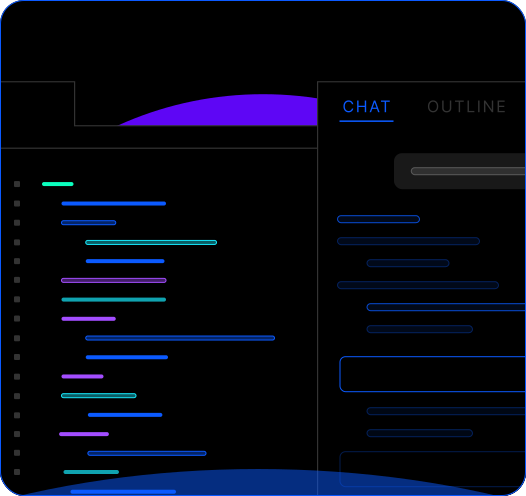
Chat, edit, and validate.
Ask Cursor’s agent for tables, endpoints, or workflows. It writes XanoScript in your project files, and the Developer MCP and language server catch mistakes before you push.
- 3
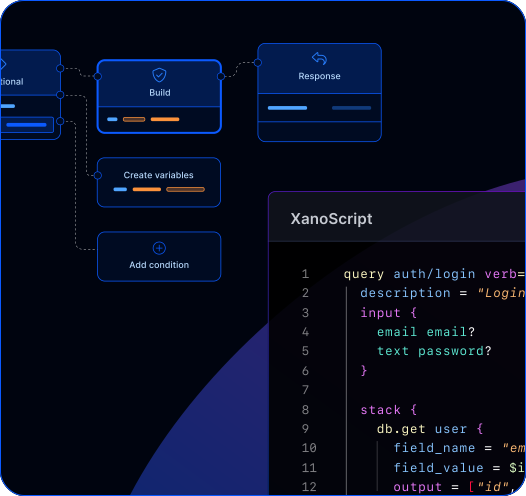
Push and promote.
Push to a sandbox with the CLI, review the changes in Canvas View, then promote them to your live workspace.
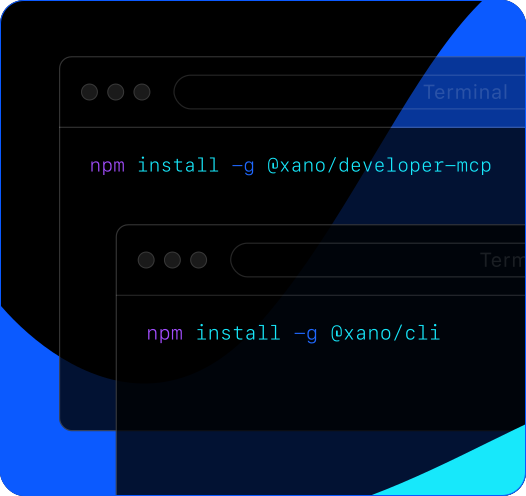
Install in one click.
Add the Developer MCP to Cursor and the XanoScript extension, then pull your workspace into your project with the Xano CLI.
Chat, edit, and validate.
Ask Cursor’s agent for tables, endpoints, or workflows. It writes XanoScript in your project files, and the Developer MCP and language server catch mistakes before you push.
Push and promote.
Push to a sandbox with the CLI, review the changes in Canvas View, then promote them to your live workspace.


Everything Cursor needs to build production backends


Write it in Cursor.
Run it on Xano.
Frequently asked questions
Use the one-click install in the Cursor setup guide, or add the Xano server (npx -y @xano/developer-mcp) to ~/.cursor/mcp.json for every project or .cursor/mcp.json for just one. Restart Cursor, then ask it which version of the Xano Developer MCP is installed to confirm the connection.
Yes. Pull the workspace into your project with the Xano CLI and Cursor sees your existing schemas, endpoints, and logic as files it can read and edit. Start by asking it to extend what you’ve already built.
It’s strongly recommended. The XanoScript Language Server is on Open VSX, the marketplace Cursor installs from, so it installs in a click. It adds completions, syntax highlighting, and inline errors, which makes the code Cursor writes much easier to review and edit by hand.
Cursor validates its XanoScript with the Developer MCP and the language server, and fixes what they flag before you push. After that, changes go to a sandbox first, so you test them against production-grade infrastructure and review them in Xano before anything goes live.
Yes. The Developer MCP works with any tool that supports MCP, including Claude Code, Codex, Windsurf, and VS Code with GitHub Copilot. Teams also build on Xano in the Xano editor or in XanoScript by hand - no AI required.
Yes. Cursor writes the logic, but Xano provides the infrastructure - scalable Postgres, auth, background jobs, and automatic deployment. AI-generated code runs on the same production-grade stack as everything else on Xano, so scaling is handled at the platform level.
Edit it. The XanoScript lives in your project, so you can change it in Cursor like any other code, or open it in Canvas View. Everything stays visible, editable, and portable.
Sign up for Xano
Join 100,000+ people already building with Xano.
Start today and scale to millions.
Start building for free